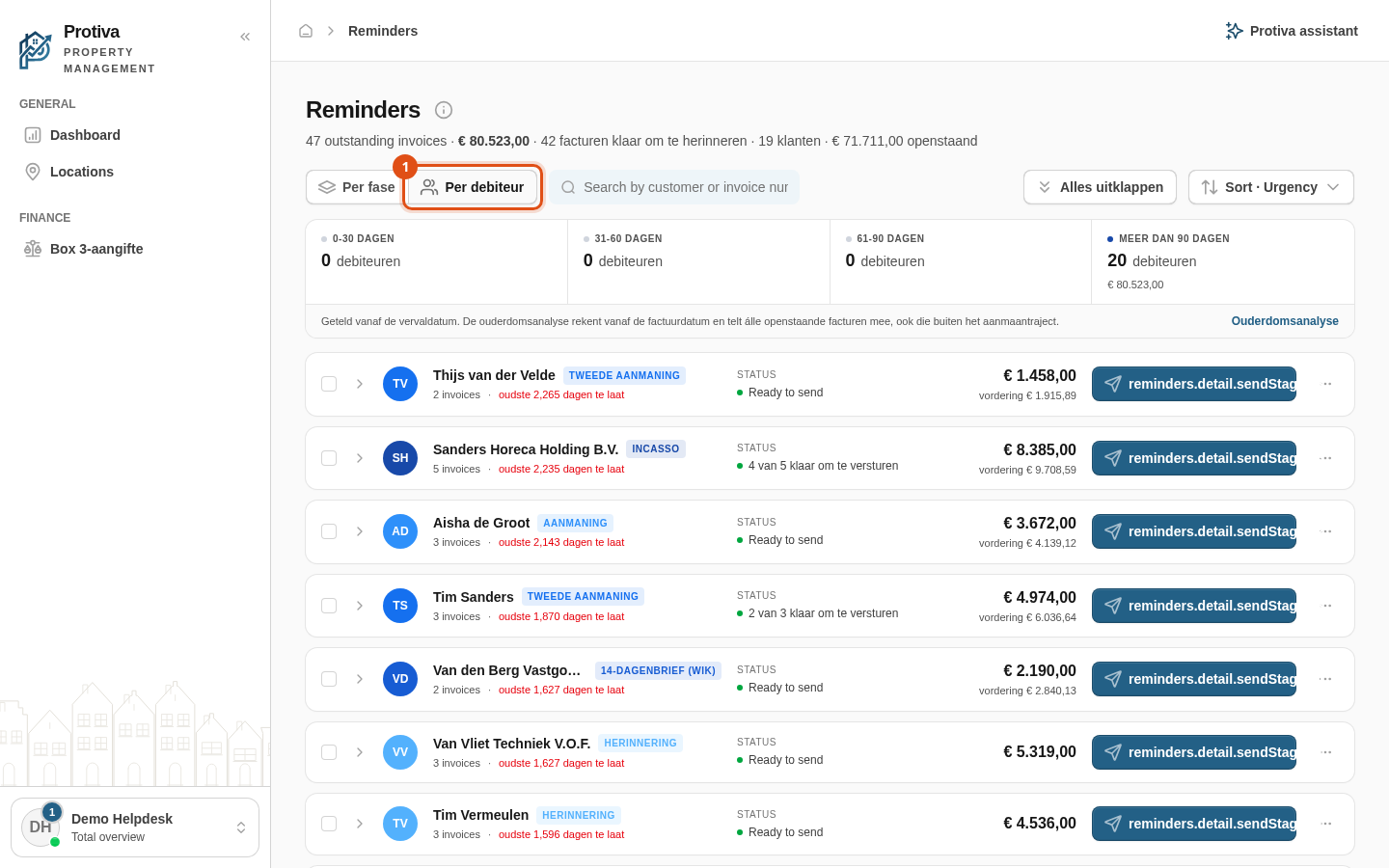
View the debtor panel and perform actions
The debtor panel shows all outstanding invoices for a single debtor in one place, including the total claim, the status per invoice and the ability to pause or resume the dunning process for the entire customer.
Open the debtor panel
Go to Reminders;
- Switch the view to By debtor;
- Click the ⋯ button to the right of the debtor row you want to inspect.
What you see in the panel
At the top you see the debtor's name, type (Tenant or Contact) and email address. Below that are three summaries: the total Outstanding amount, the Total due (principal plus interest and costs) and the current Status with the highest stage of the dunning ladder. Beneath the summary is the invoice list showing each invoice's number, stage, due date, status and whether it will be included in the next send.
Actions from the panel
- To pause the dunning process for all invoices of this debtor, click the pause button in the top-right of the header, enter a reason and click Pause;
- To resume a paused process, click the resume button in the same position;
- To view an individual invoice, click the corresponding invoice row in the list — the invoice detail panel opens;
- To send a reminder for this debtor, click the send button at the bottom of the panel.
The send button is only visible when at least one invoice is ready to send. On a shared portfolio with read-only access the action buttons are hidden.