Using the invoice detail pane (PDF, log and notes)
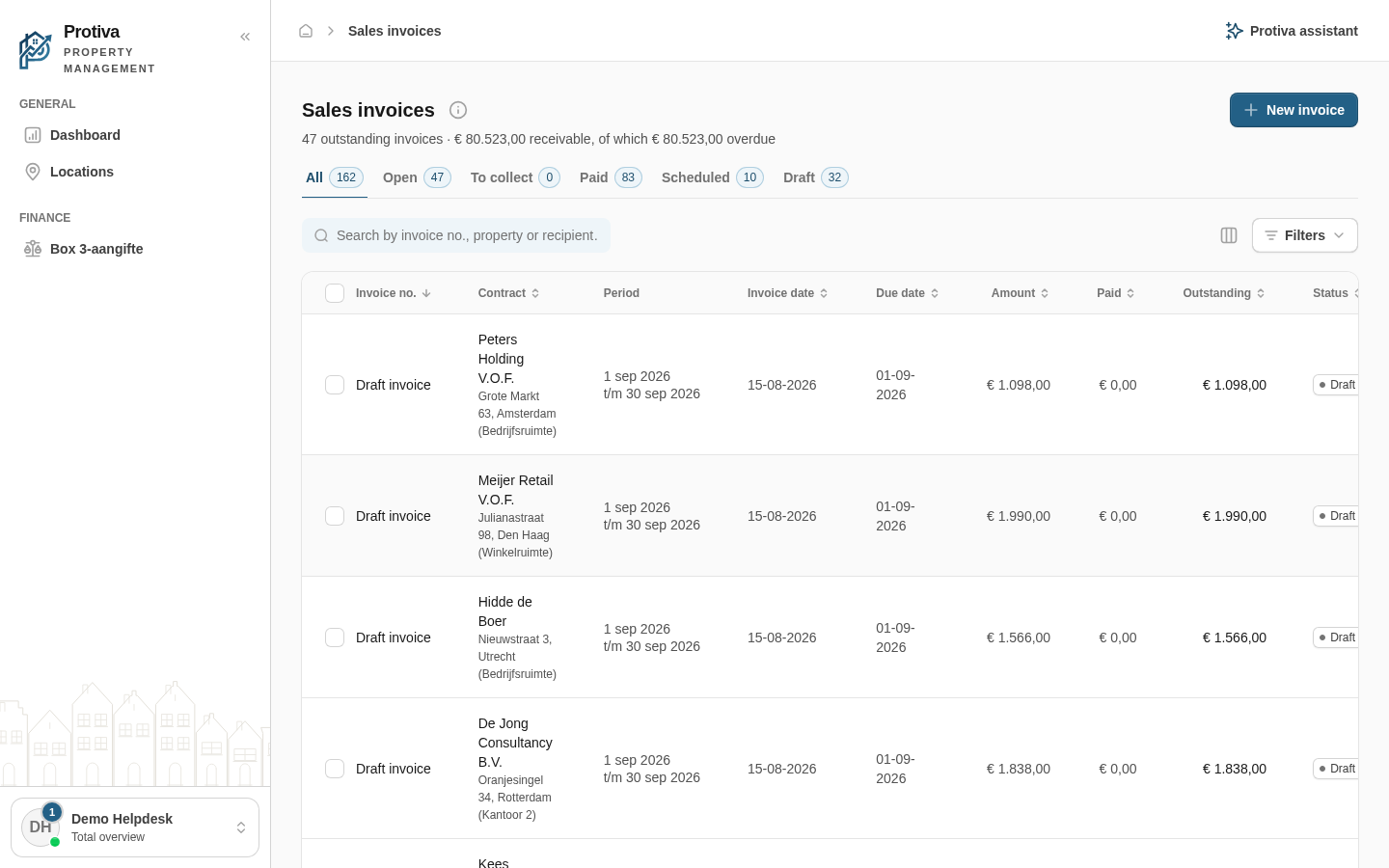
When you select an invoice in the overview, a detail pane opens on the right showing a PDF preview, the log and notes. This lets you review all information without leaving the list.
Opening the detail pane
Go to Sales invoices;
- Click a row in the invoice list — the detail pane opens on the right showing the recipient name, status and key invoice details in the header.
Switching between tabs
- Click the Preview tab to view the invoice PDF;
- Click the Log tab to see the timeline of events — such as created, edited, sent, reminders and payments;
- Click the Notes tab to read or add internal notes;
- Click the Dunning costs tab to view dunning costs — this tab only appears when a reminder has been sent.
Actions from the detail pane
- Click Send (for a draft) or Resend (for an already sent invoice) to send or resend the invoice;
- Click Edit to edit the invoice — this button is not available for credit notes;
- Click Mark as paid to mark the invoice as paid — this button only appears for outstanding invoices;
- Click Go to relation to navigate to the linked tenant or contact;
- Click Close to close the detail pane and return to the full list.
The search field and tab filter in the sidebar on the left work independently: you can search and filter while the detail pane is open, and select a different invoice without closing the pane.