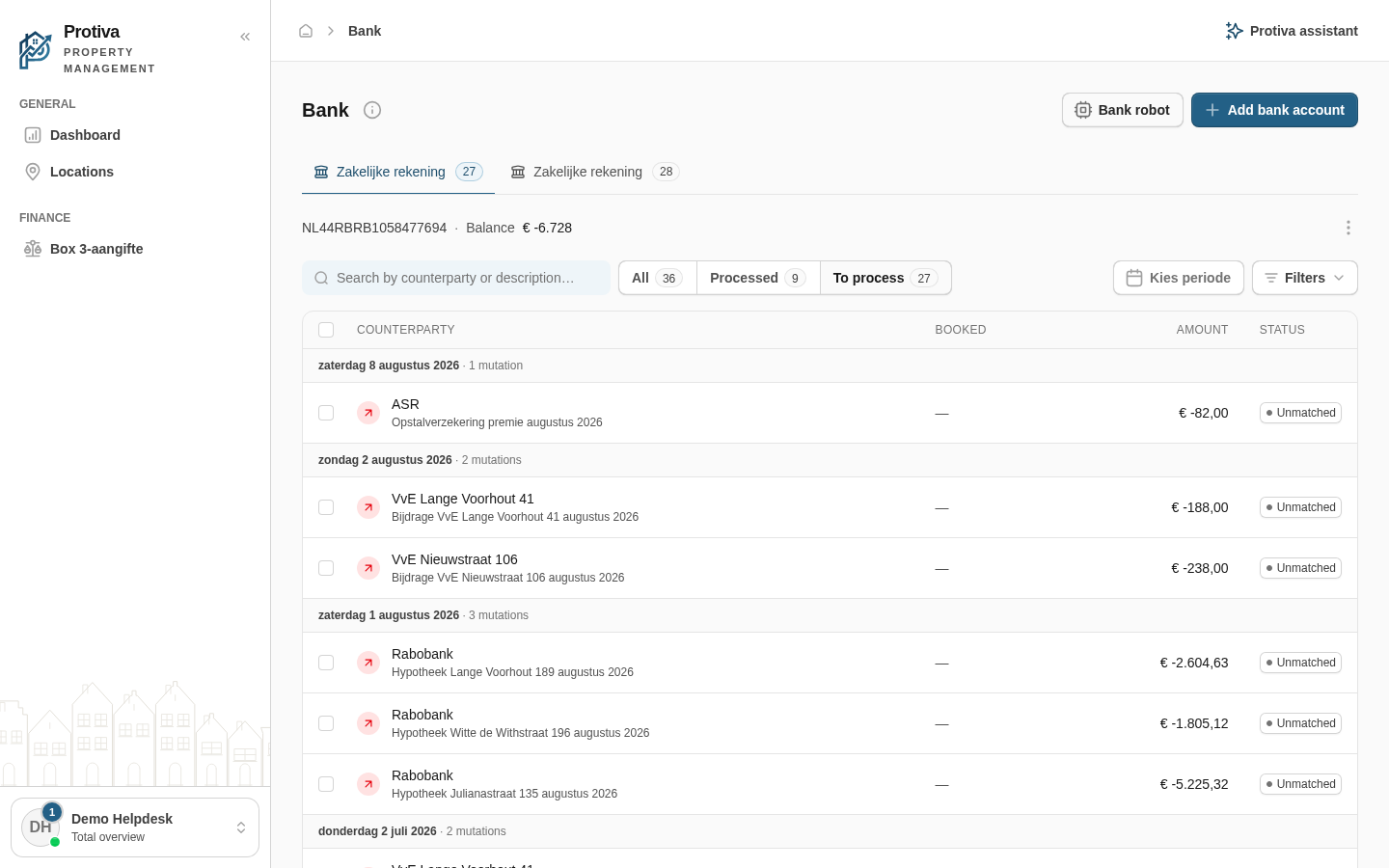
Using the Bank robot and managing rules
The Bank robot processes bank transactions automatically: it matches entries to invoices when the invoice number and amount match exactly, and handles the rest via rules you define. That way you only need to deal with the uncertain cases yourself.
Opening the Bank robot panel
Go to Bank;
- Click Bank robot.
Running the robot manually
- In the panel, under Run now, click Run. The robot reviews all outstanding transactions and automatically books those where the invoice number and amount match exactly. Afterwards you will see a summary of the result.
Adding a new rule
- Under New rule, choose at Condition what the rule should match on:
- Description contains — the transaction description contains the specified text;
- Counterparty name is — the counterparty name matches exactly;
- Counterparty account (IBAN) is — the counterparty IBAN matches exactly.
- Type the value in the text field;
- At Post to, choose the ledger account to which matched transactions should be booked;
- Click Add rule.
Deleting an existing rule
- Find the rule in the list under Rules;
- Click the delete button next to the rule.
The robot also runs automatically after every synchronisation. Transactions processed by the robot are marked with the Bankrobot label in the transaction list.