Pause or resume the dunning process for an invoice
You can pause the dunning process for a single invoice — for example during a payment arrangement or dispute — and resume it later. While an invoice is paused, no next reminder will be sent.
Pause the dunning process
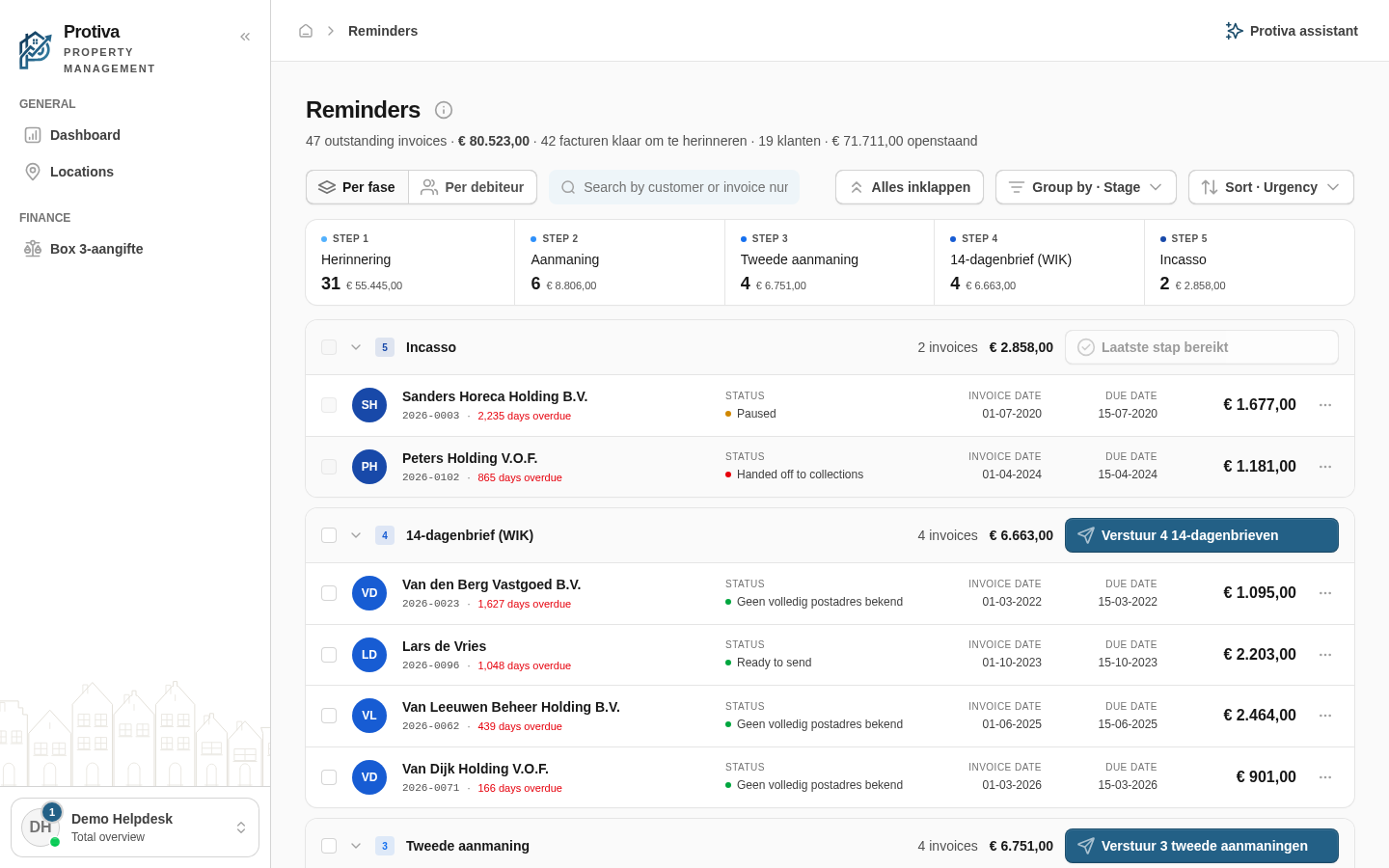
Go to Reminders;
- Click the invoice you want to pause to open the invoice panel;
- Click the Pause button (pause icon) in the top-right corner of the panel;
- Enter a reason at Reason for pausing…;
- Click Pause to confirm.
Resume the dunning process
- Go to Reminders;
- Click the paused invoice to open the invoice panel;
- Click the Resume button (play icon) in the top-right corner of the panel. The process resumes immediately.
A paused invoice is recognisable by the yellow banner showing the status Paused and the reason you entered. Pausing applies only to this invoice; to pause the process for all invoices of the same debtor at once, use the option in the debtor panel.