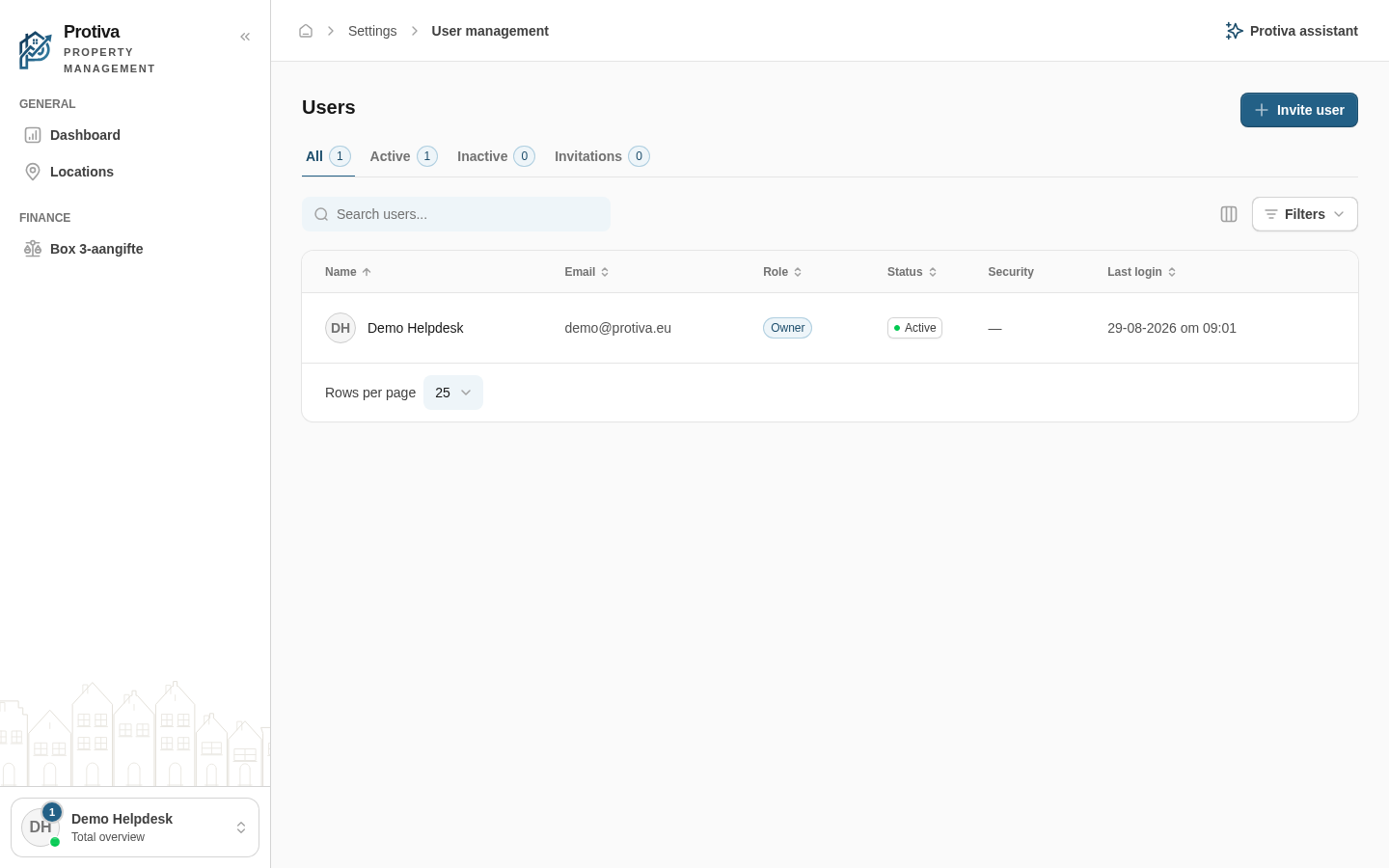
Manage users, roles and access
With User management you manage who has access to your Protiva account, what role everyone has, and you can invite or block users.
Invite a new user
Go to Settings;
- Click User management;
- Click Invite user;
- Enter the email address in Email address;
- Click Send invitation.
The invitee receives an email with an activation link. You can also copy the link manually via Copy.
Change a user's role
- Go to Settings;
- Click User management;
- Click the user in the list;
- Change the setting at Role under Access.
Block or unblock a user
- Go to Settings;
- Click User management;
- Click the user in the list;
- Under Access, click:
- Block — the user can no longer log in to this administration;
- Unblock — the user regains access.
Remove a user
- Go to Settings;
- Click User management;
- Click the user in the list;
- Click Remove member under Access;
- Confirm with Confirm.
The user's personal account remains; only access to this administration is revoked.
Revoke or resend an invitation
- Go to Settings;
- Click User management;
- Open the Invitations tab;
- Next to the invitation, click:
- Resend — to resend the invitation;
- Revoke — to revoke the invitation.