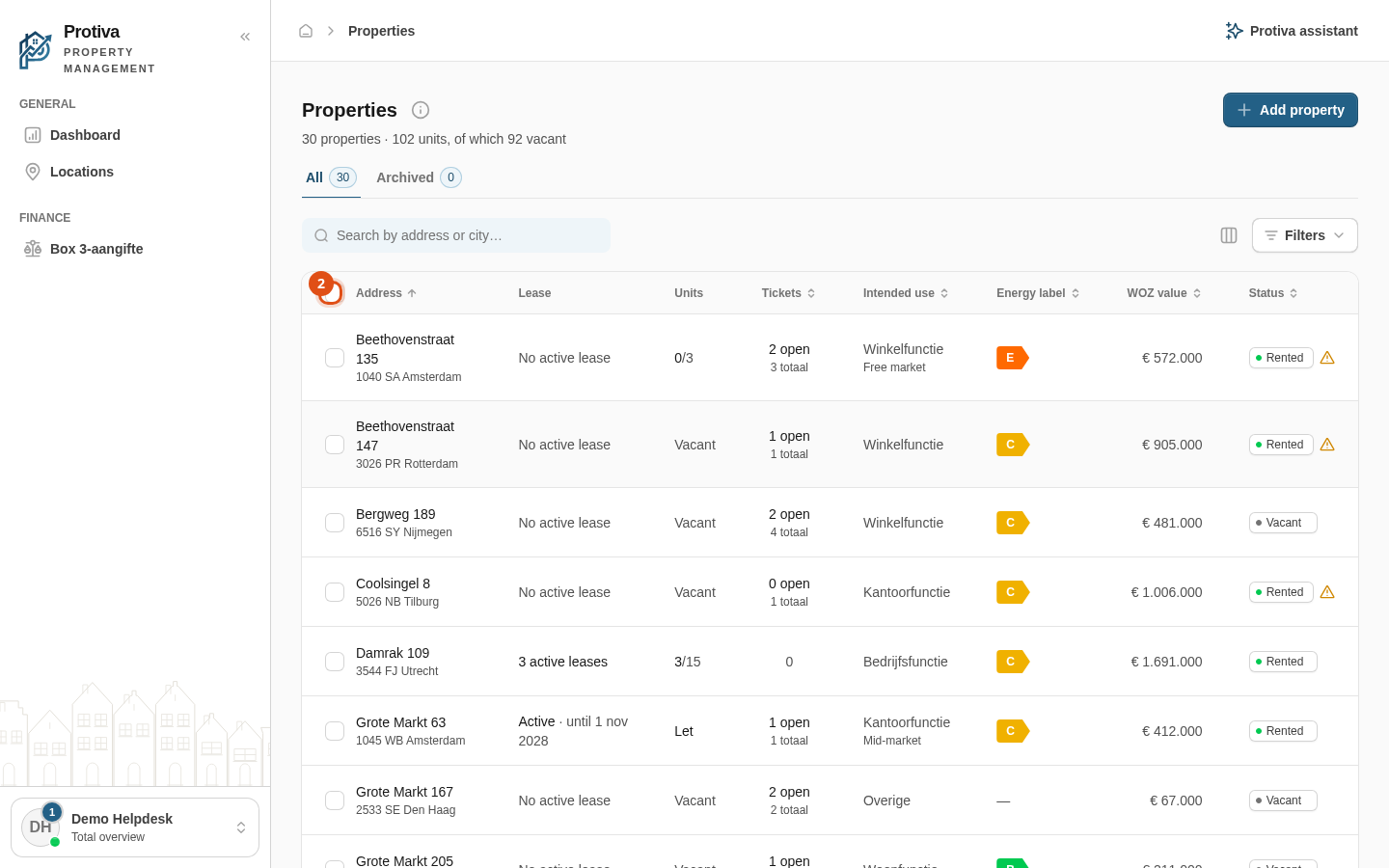
Bulk archive or delete Properties
Select multiple Properties at once to archive, restore or delete them in a single action. This lets you manage large portfolios efficiently without opening each property individually.
Bulk archive, restore or delete Properties
Go to Properties;
- Choose the appropriate tab:
- For active Properties: click All;
- For archived Properties: click Archived.
- Select the Properties you want to edit by clicking the checkboxes in the list;
- Choose the desired bulk action from the toolbar that appears:
- On the All tab:
- Click Archive to archive the selected Properties;
- Click Delete to delete the selected Properties.
- On the Archived tab:
- Click Restore to restore the selected Properties;
- Click Delete to permanently delete the selected Properties.
- On the All tab:
- When deleting: review the list in the confirmation dialog and click Delete to confirm, or click Cancel to cancel.
Properties with associated records (such as leases or invoices) cannot be deleted — use Archive instead. If you delete a mixed selection, only Properties without records are removed and you receive a notification about the blocked ones.