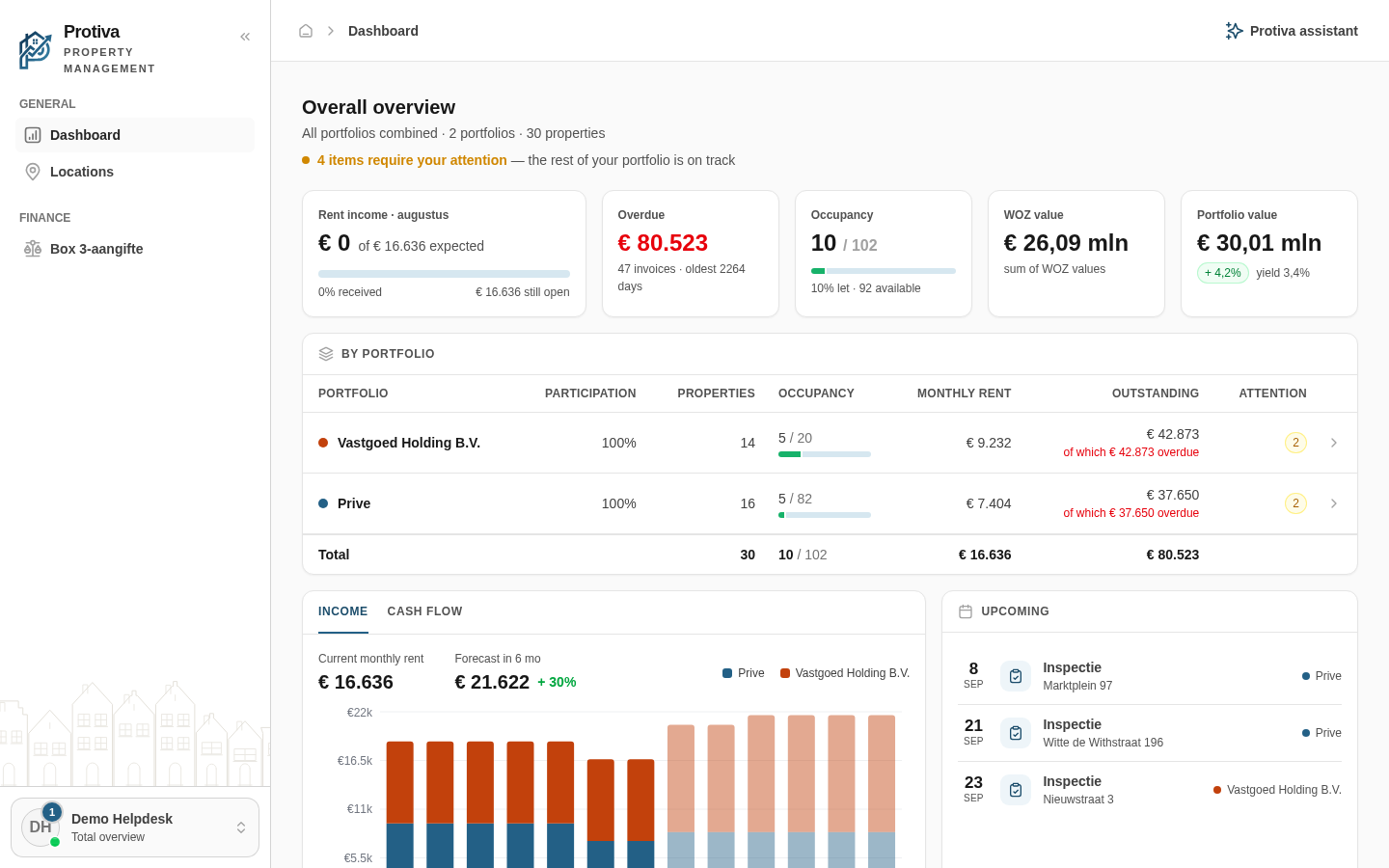
Use the overview map with portfolio filter in the Overall overview
The overview map shows all properties from all your portfolios on a single map. Use the portfolio filter to control which portfolios are visible.
View and filter the overview map
Go to Dashboard;
- Make sure Total overview is selected in the portfolio picker;
- Scroll down to the map in the left column of the fourth layer;
- Click Show portfolios to open the portfolio filter;
- Toggle the portfolios you want to show or hide on the map;
- Click a pin on the map to view the property information.
The pin colour indicates the rental status: green means rented, blue means available. Click All locations at the top right of the card to go to the full Locations page.