Upload, remove or align a logo
Add your own logo to invoices and letters, remove it, or adjust its position and size.
Upload, remove or align a logo
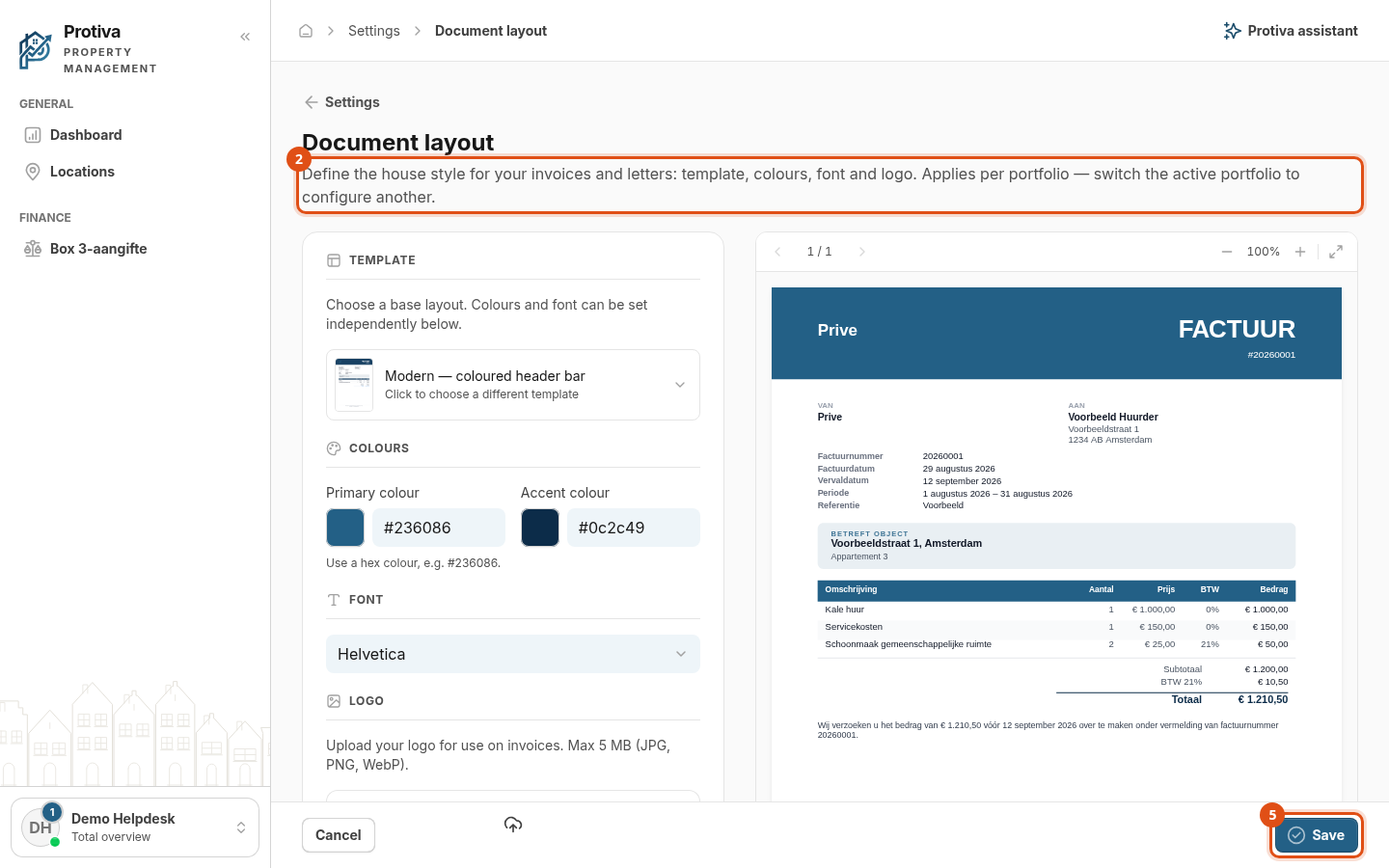
Go to Settings;
- Scroll to the Logo section;
- Choose what you want to do:
- Upload a logo — drag an image into the upload area or click it to browse for a file (JPG, PNG or WebP, max 5 MB);
- Remove logo — click Remove logo next to the current logo;
- Change alignment — select the desired position at Logo alignment (Left, Centre or Right);
- Change Logo size — drag the slider at Logo size (50%–200%).
- Check the result in the live preview on the right side of the screen;
- Click Save to save your changes.
After saving, the new logo settings are applied to all future invoices and letters for the active portfolio.