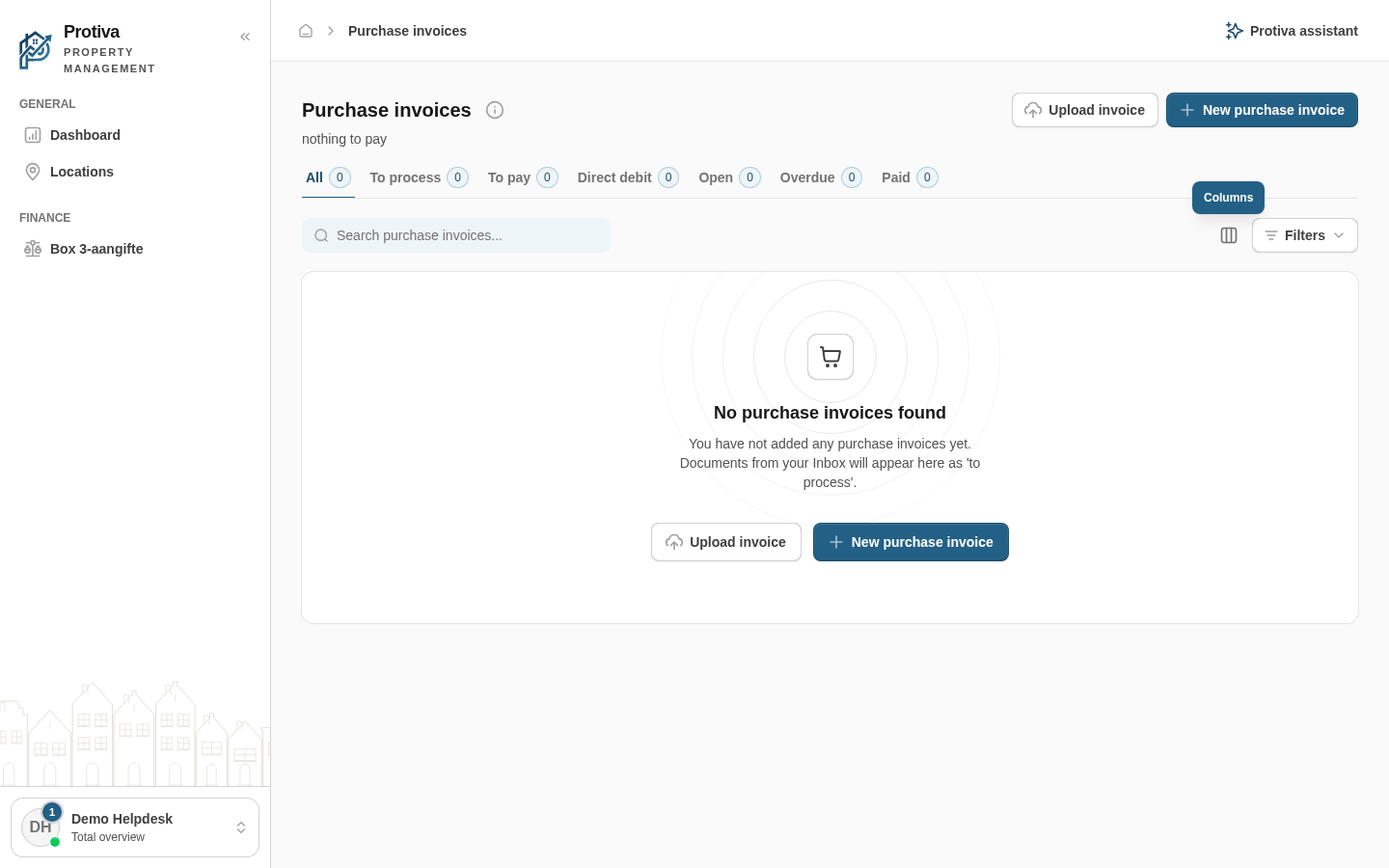
Show, hide and reorder columns in the purchase invoice overview
Customise which columns are visible in the purchase invoices list and in what order they appear. This way you only see the information that is relevant to you.
Adjust columns
Go to Purchase invoices;
Click the Columns button in the top-right toolbar;
Click the eye icon next to a column name to show or hide that column;
Drag a column by its grid icon to the desired position to change the order.
Your preferences are saved automatically to your profile and apply on every device you sign in to.
Updated on 8/28/2026
Was this article helpful?
Log in
Choose your portal
Every role has its own environment. Pick where you want to log in.
Each role has its own account and its own portal. Pick yours and you create the right account straight away.
Your own property
Management firm
Trades
By invitation
You'll get an invitation by e-mail from your landlord. Open the link in that e-mail to activate your account. No invitation? Ask them to send it again, and check your spam folder too.
Already have an account or an invitation?
Account type:
✓
Check your email
We have e-mailed you the activation link. It usually arrives within a minute. Click the link, choose a password and you are in. No e-mail? Check your spam folder as well.