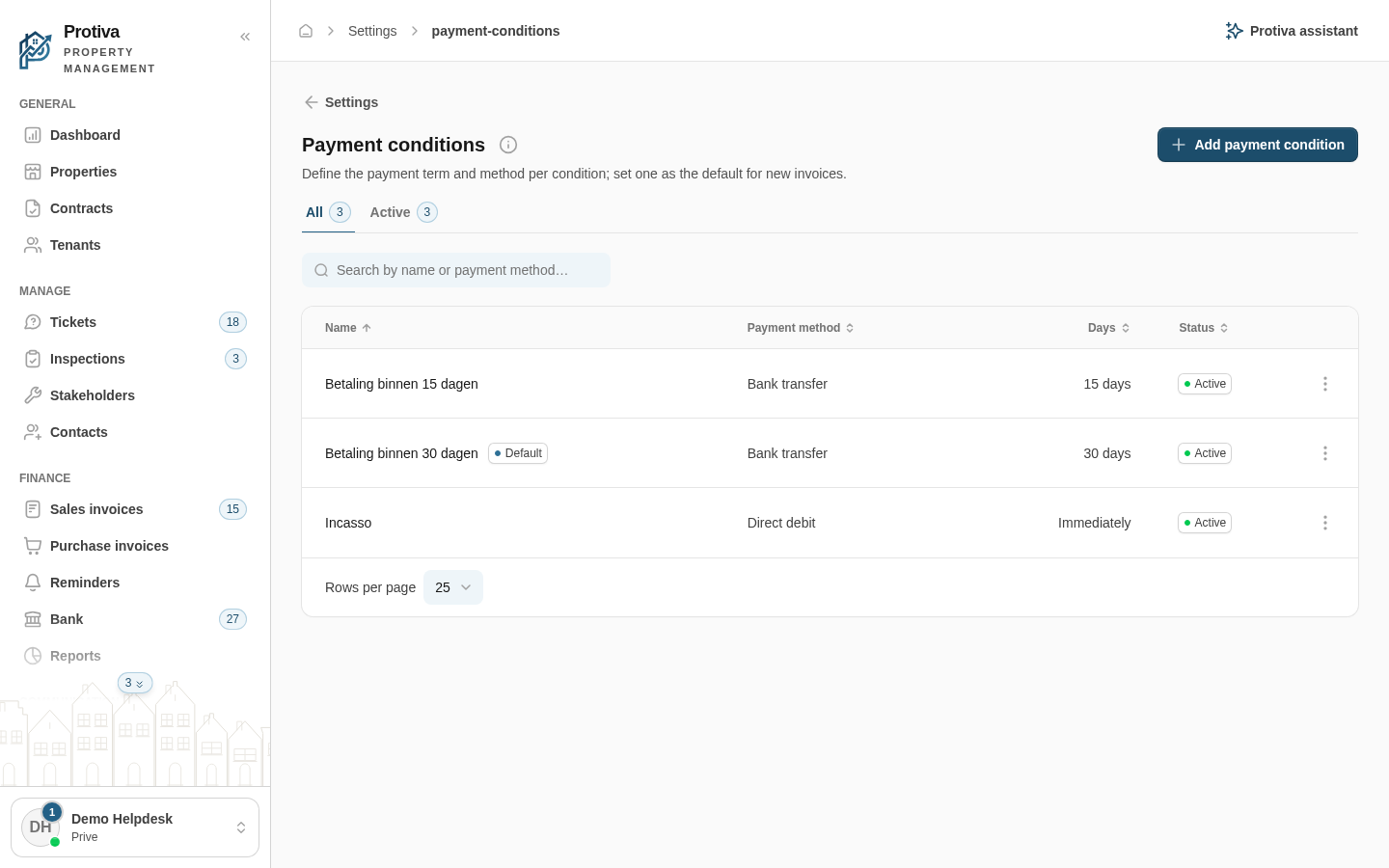
Manage payment conditions (add, edit and delete)
Payment conditions determine the payment term and payment method (transfer or direct debit) per invoice. You can add, edit and delete conditions.
Add a payment condition
Go to Settings;
- Click Add payment condition;
- Fill in the fields in the dialog:
- Name — the name of the condition;
- Days — the number of days for the payment term (0–365);
- Payment method — choose Bank transfer or Direct debit;
- Invoice text — optional text that appears on the invoice;
- Default — tick to pre-select this condition for new invoices;
- Active — untick to make the condition unavailable on new invoices.
- Click Add payment condition.
Edit a payment condition
- Go to Settings;
- Click the row of the payment condition you want to edit;
- Adjust the desired fields in the dialog;
- Click Save.
Delete a payment condition
- Go to Settings;
- Click the Actions button at the end of the row;
- Click Delete;
- Click Delete in the confirmation dialog.
Invoices that already use a deleted condition remain unchanged.