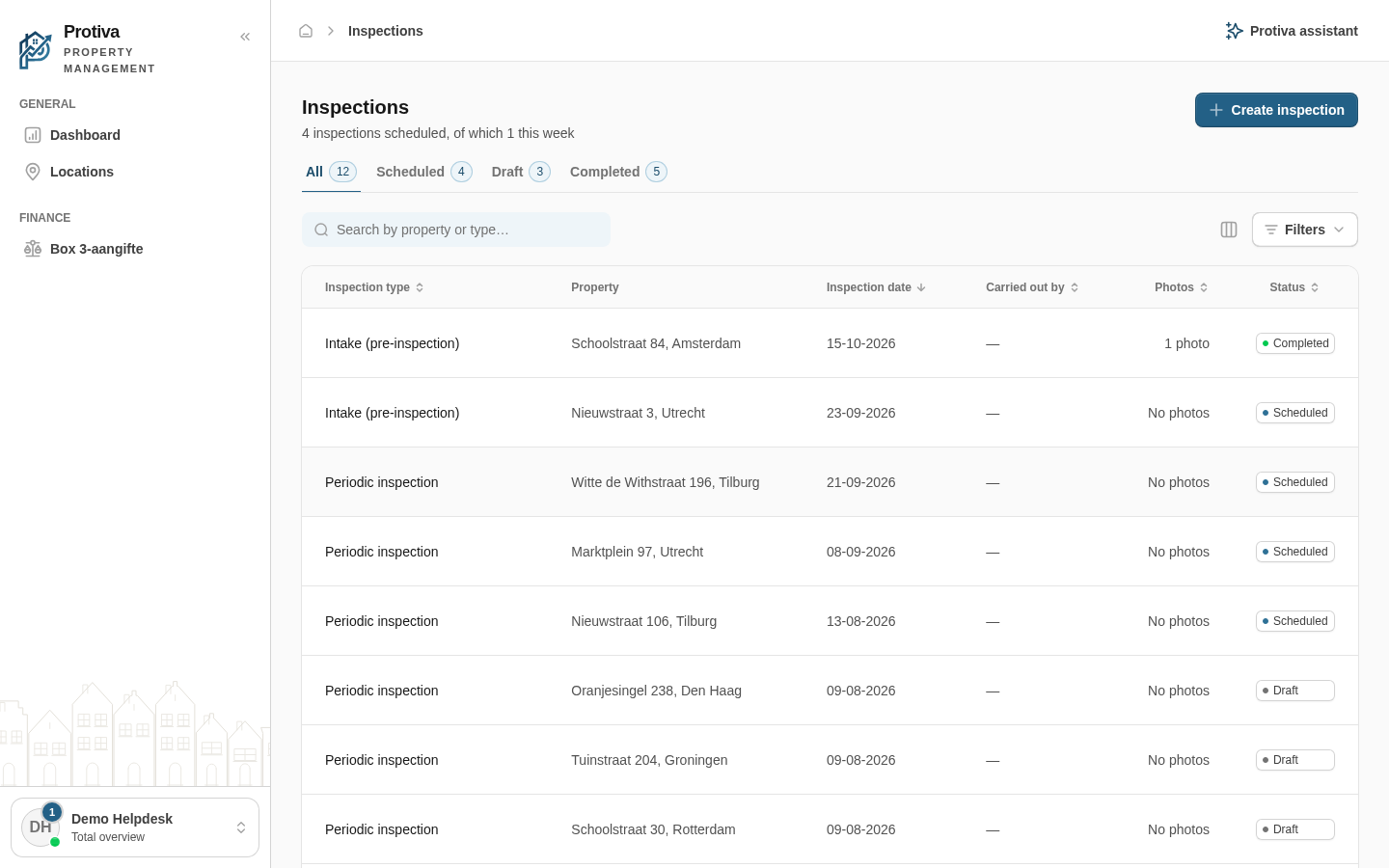
Fill in and edit the checklist of an inspection
The checklist lets you record the condition per room or component and note any findings. This builds a complete inspection report that serves as evidence during, for example, a tenant changeover.
Fill in the checklist
Go to Inspections;
- Click the inspection you want to edit to open the detail pane;
- For each checklist row, enter the name of the room or component in the Room / item field;
- Choose the assessment by clicking the desired condition in the segmented control next to the component — the options are, from left to right: Good, Fair, Poor and N/A;
- Optionally fill in the Note field to record any findings, defects or agreements;
- Click Add item to add an extra row to the checklist;
- Click Save to save the inspection.
Rows set to N/A are not shown in the completed report. You can remove a row by clicking the delete button next to it.