Edit inspection details (type, inspector, dates)
Update the type, inspector and scheduled or completed date of an inspection. This keeps the details accurate when the planning or execution changes.
Edit inspection details
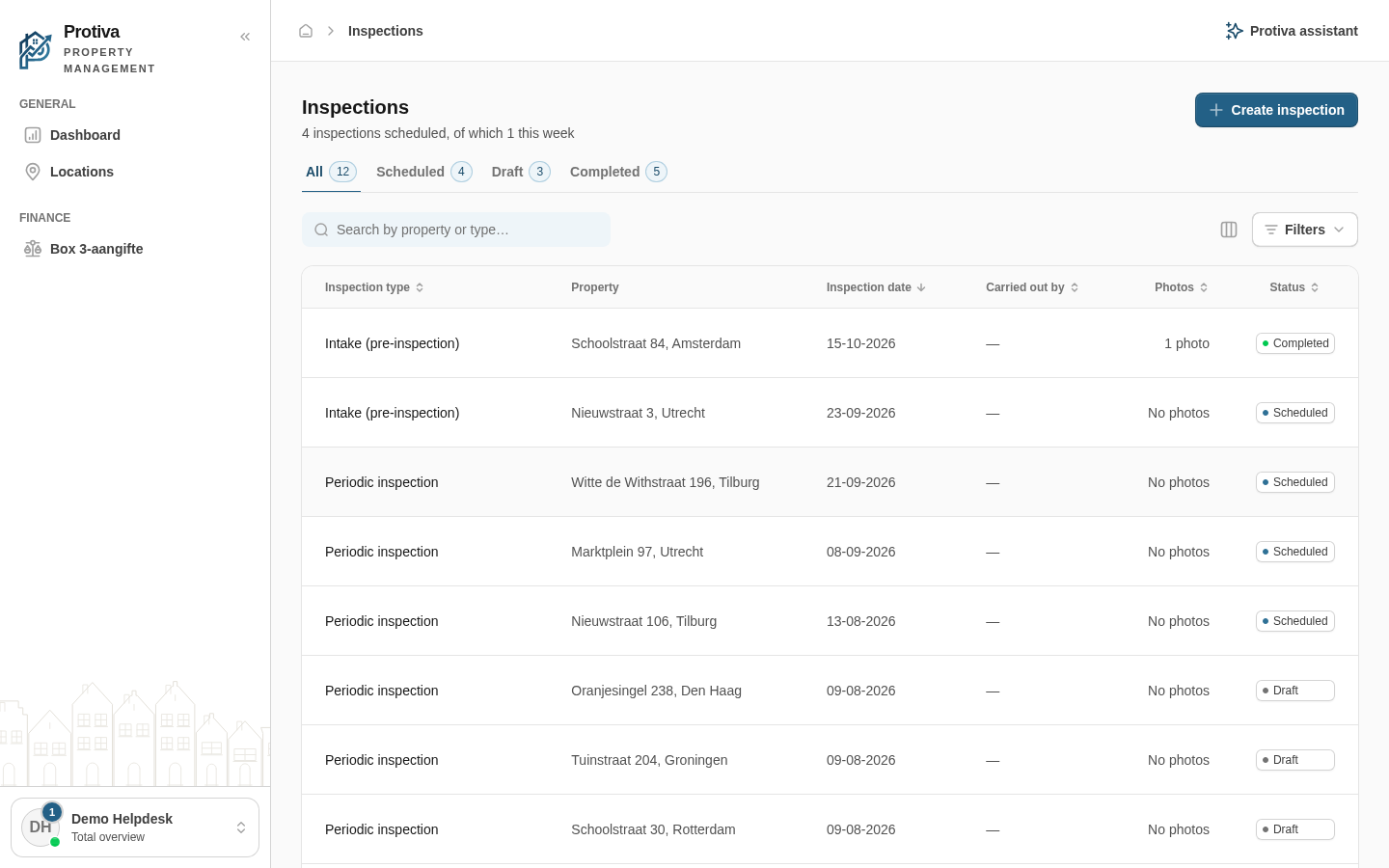
Go to Inspections;
- Click the inspection you want to edit;
- Click Reopen if the inspection has the status Completed;
- Change the desired fields in the Details section:
- Choose a different type in the Inspection type field;
- Choose a different inspector in the Carried out by field;
- Change the date in the Scheduled date field;
- Change the date in the Completed on field.
- Click Save.
After saving, the inspection is marked as completed and the updated details are immediately visible in the overview.