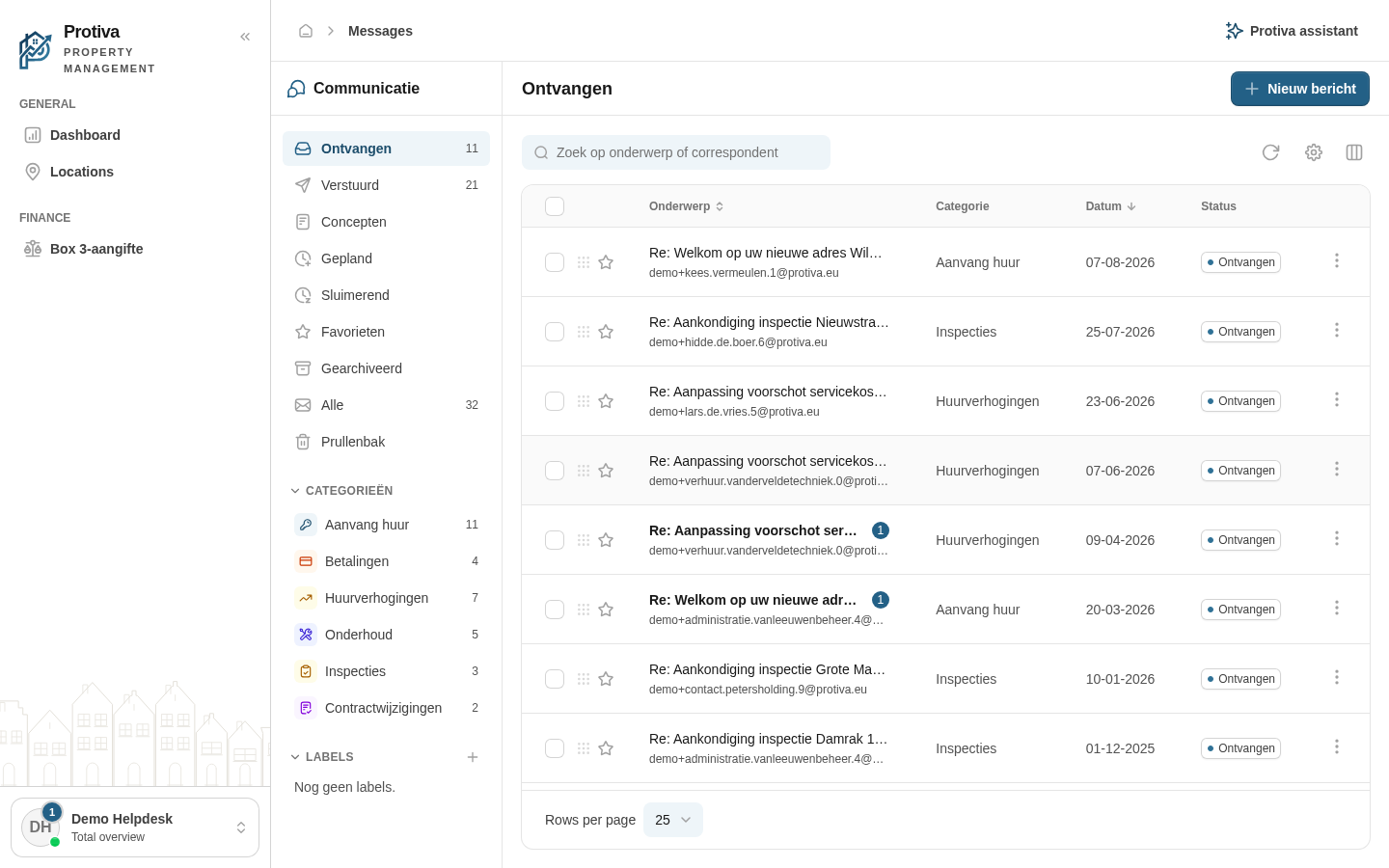
Drag conversations to a label or folder
Drag a conversation from the message list to a label or folder in the sidebar to move it or assign a label in a single action.
Drag a conversation to a label or folder
Go to Messages;
- Grab the drag handle icon (⠿) to the left of the star on the conversation you want to move and hold down the mouse button;
- Drag the conversation to the desired target in the sidebar and release:
- To a label — the label is added to the conversation;
- To Archived — the conversation is archived;
- To Inbox — the conversation is moved back to the inbox;
- To Trash — the conversation is moved to the trash;
- To Starred — the conversation receives a yellow star;
- To Snoozed — the snooze dialog opens so you can pick a time.
The result appears immediately in the list; you do not need to refresh the page.