Draft and edit the contract text
On the Lease agreement tab you draft the tenancy agreement from a template, refine the text with the AI assistant or by hand, and save the result.
Generate the contract text from a template
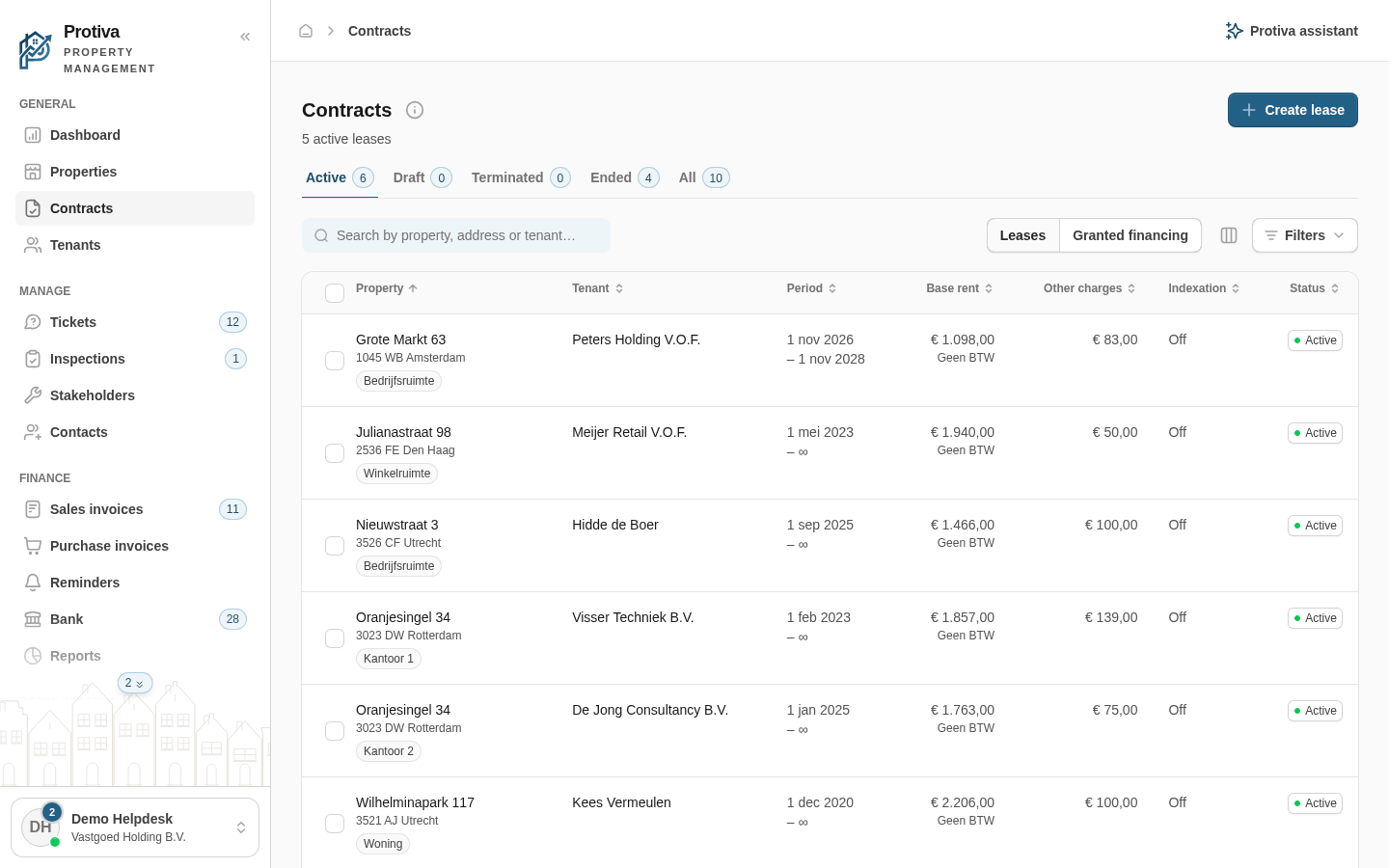
Go to Contracts;
- Open the contract for which you want to draft the text;
- Click the Lease agreement tab;
- At the mode switcher, choose Draft contract (this is the default);
- Click Generate contract in the signing panel on the right. The composition wizard opens;
- Choose a template in the Contract type step;
- Fill in the open fields in the Complete step;
- Review the summary in the Review step and confirm.
Edit the text manually
- Click Edit to open the Markdown editor;
- Make your changes;
- Click Save in the footer bar.
Adjust the text with the AI assistant
- Open the AI chat panel to the right of the contract text;
- Type an instruction in the field (for example "Add a pet clause") or click Dictate to dictate your instruction;
- Click Send;
- Review the suggestion and click Apply to accept the change;
- Click Save in the footer bar to save the updated text.
Once the contract has been sent for signing, the text is locked. If you need to make changes after that, first create a new version via Create new version.