Delete draft invoices
You can delete one or more draft invoices at once. Only invoices with the status "draft" can be deleted; invoices that have already been sent or paid are automatically skipped.
Delete draft invoices
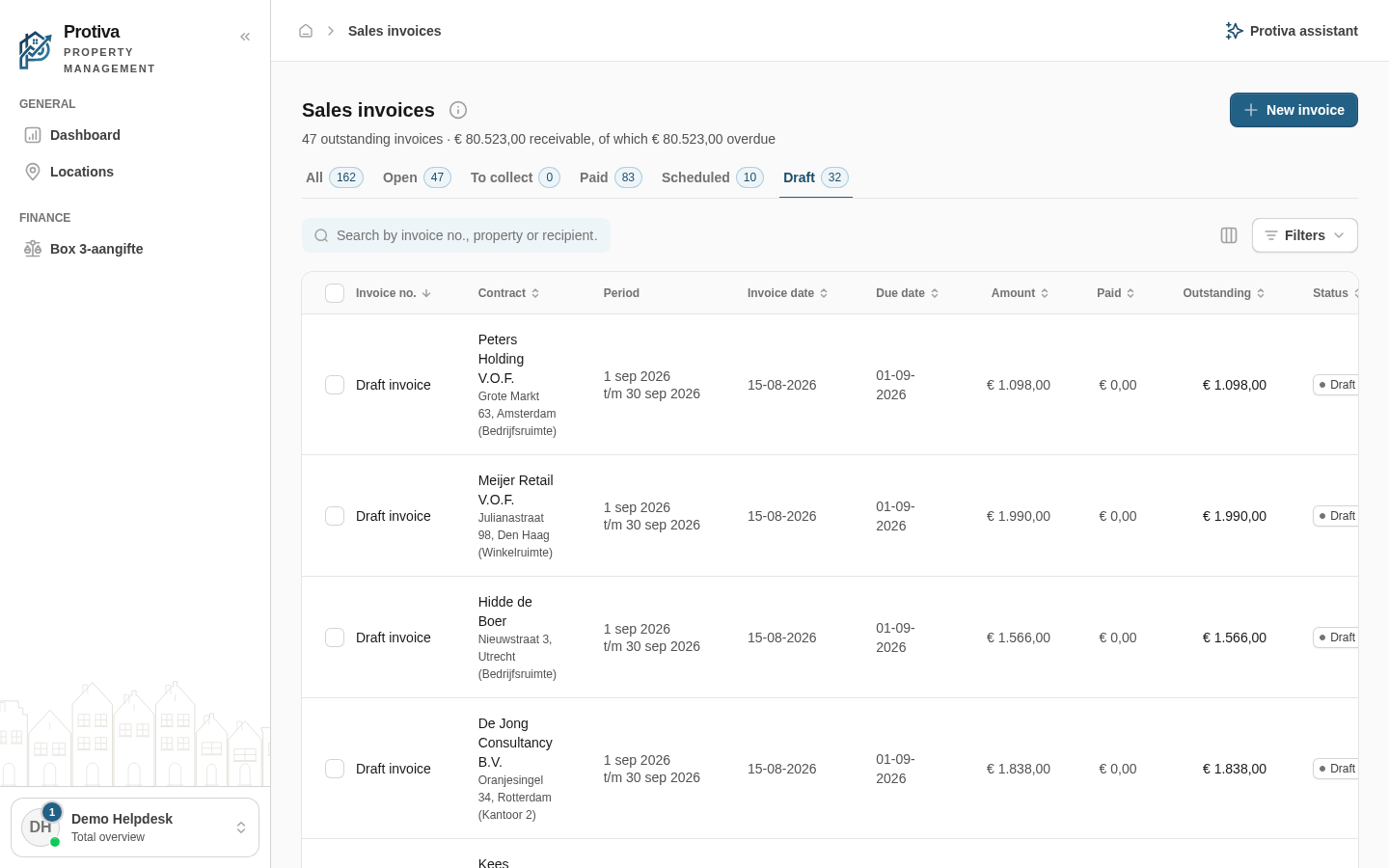
Go to Sales invoices;
- Click the Draft tab to show only draft invoices;
- Select the draft invoices you want to delete;
- Click Delete in the action bar at the bottom of the screen;
- Review the confirmation dialog. If one or more drafts will be automatically recreated (because the lease or financing is still active), Protiva displays a warning listing those invoices;
- Click Delete to permanently delete the draft invoices.
If your selection includes invoices that are not drafts, those are skipped and you will receive a notification about them.