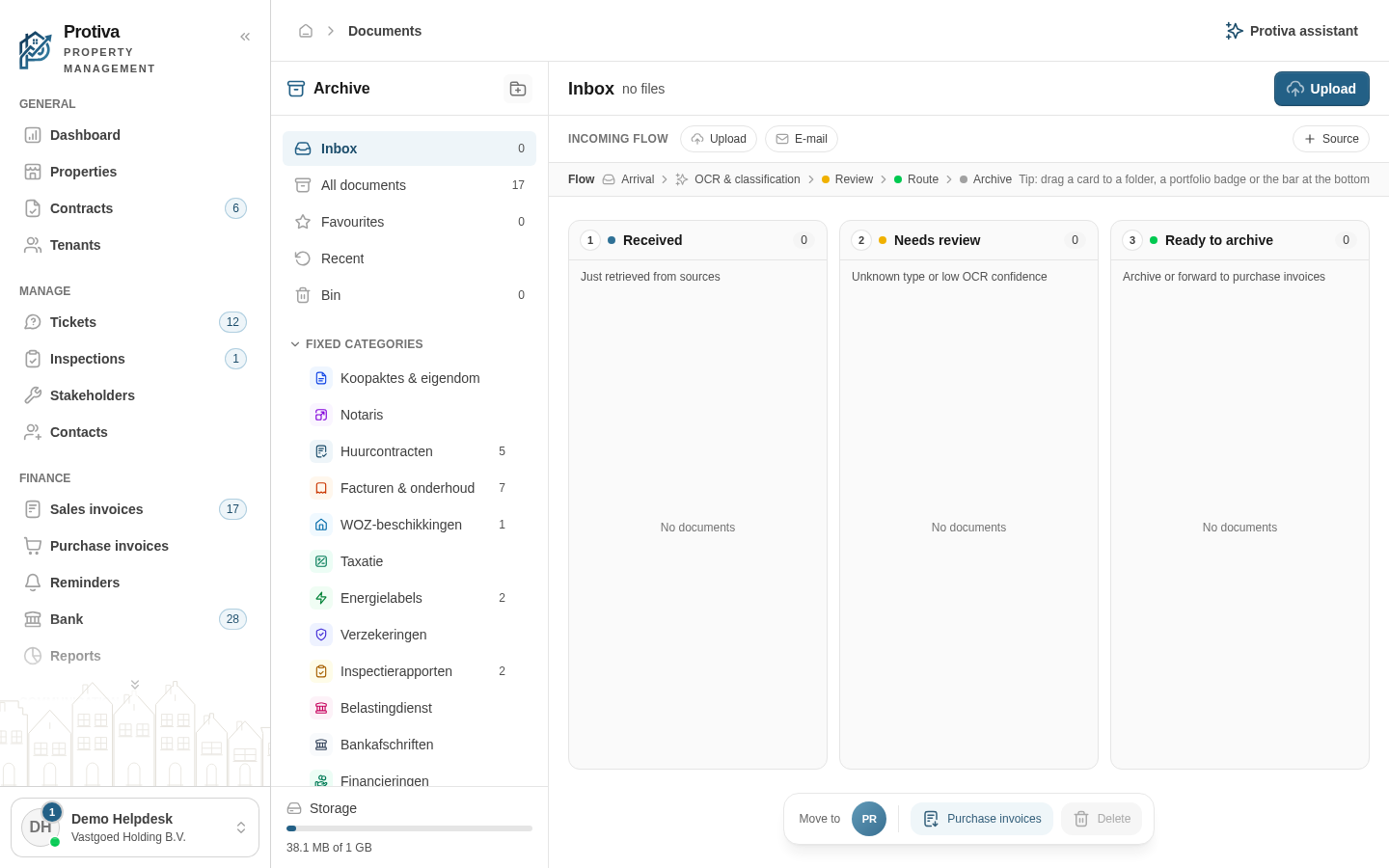
Create, rename and delete folders
Folders let you organise documents in the archive. You can create your own folders and subfolders, rename them and delete them.
Create a new folder
Go to Documents;
- Click the New folder button (top-right of the sidebar);
- Enter a Folder name;
- Choose a Colour;
- Click Create.
The new folder appears in the sidebar under My folders. To create a subfolder, open the context menu (three dots) of an existing folder and choose Add subfolder.
Rename a folder
- Go to Documents;
- Hover over the folder you want to rename and click the context menu (three dots);
- Click Rename;
- Update the Folder name and optionally the Colour;
- Click Save.
Only custom folders (under My folders) can be renamed. Fixed categories cannot be changed.
Delete a folder
- Go to Documents;
- Hover over the folder you want to delete and click the context menu (three dots);
- Click Delete;
- Choose what should happen to the contents:
- Move to parent folder — documents and subfolders move up one level;
- Move to trash — documents are moved to the recycle bin.
- Click Delete.
Only custom folders can be deleted. Fixed categories cannot be deleted.