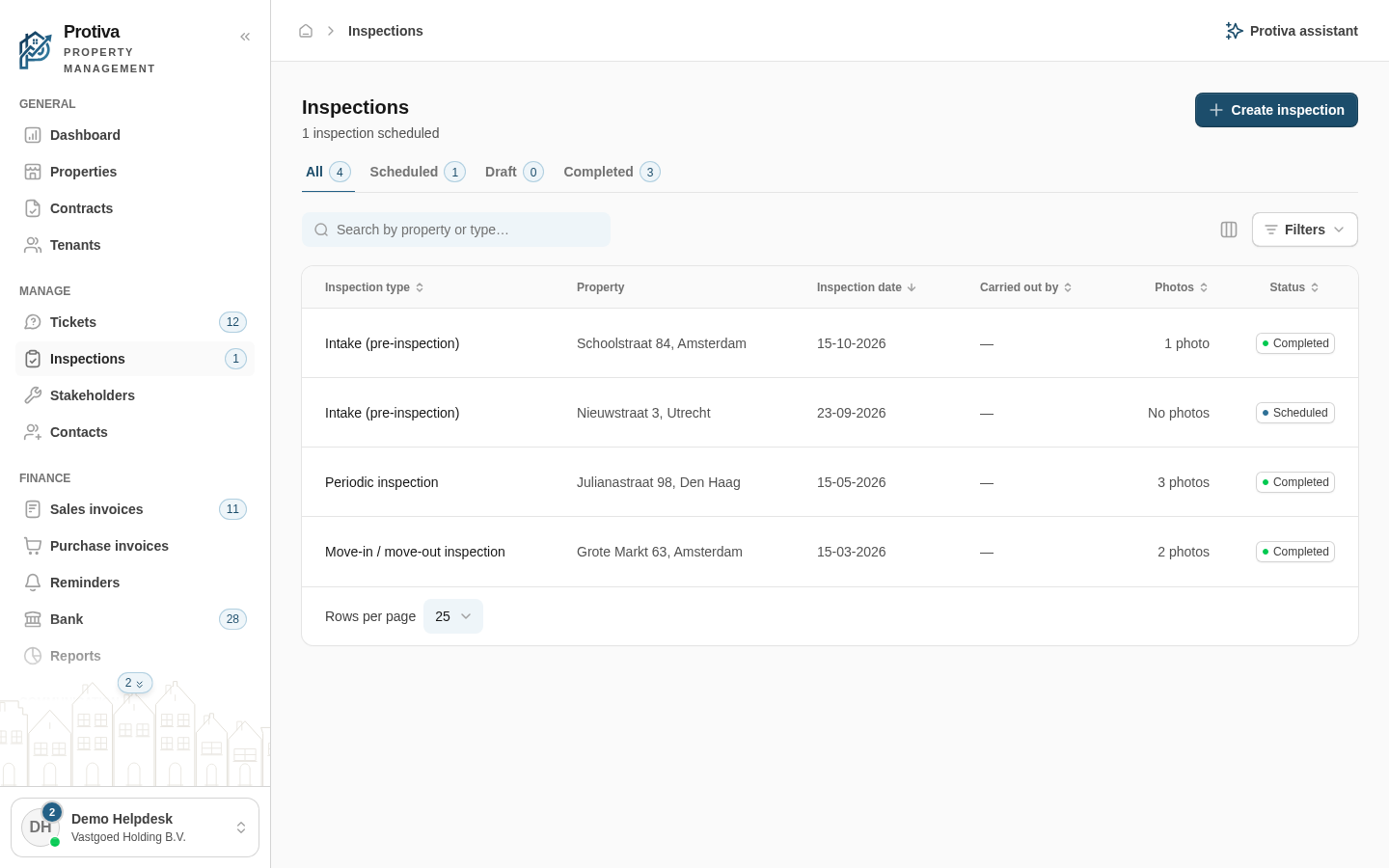
Create and complete inspections
Inspections let you record the condition of a property at a specific moment — during a move-in check, periodic maintenance or an intake. You can fill in an inspection immediately or schedule it for a colleague.
Create an inspection
Go to Properties;
- Open the property for which you want to create an inspection;
- Click the Inspections tab;
- Click Create inspection;
- Choose the Inspection type (intake, move check or periodic inspection);
- Enter the Inspection date;
- Choose what you want to do:
- Fill in now — fill in the report yourself right away:
- Click Create.
- Schedule — queue the inspection for a colleague:
- Optionally select an inspector at Carried out by;
- Click Schedule.
- Fill in now — fill in the report yourself right away:
Complete the checklist
- Open an existing inspection from the Inspections tab;
- Assess the Condition for each room or component (Good, Fair, Poor or N/A);
- Optionally add a Note for a component;
- Click Add item to add extra components;
- Click Save.
Add Photos
- Open the inspection;
- Click Add photo;
- Select one or more photos (JPG or PNG);
- Optionally add a Caption;
- Click Save.
You can reopen a completed inspection via Reopen. To remove an inspection, use Delete in the inspection report.